The best cloud based productivity tools are the ones that keep useful information accessible and shared without giving you another job to manage. For most people, I’d start with Google Workspace or Microsoft 365 for documents and calendars, then add Todoist for personal tasks or Trello for a shared project only if the built-in options leave a real gap. Notion is worth considering when you need a flexible home for team notes, but it can be more setup than a simple list requires.
Cloud-based means your information is stored or synced through an online service, so you can generally reach it from more than one device. That is helpful when a meeting runs long, a school pickup changes, and the file you need is on the computer you left at home. It also means you need to think about internet access, permissions, and what happens if you lose access to an account.
Start with the work you need to share
I would choose a document and calendar setup before shopping for anything fancier. These are the cloud based productivity tools that tend to touch the most ordinary parts of a week.
Google Workspace is a straightforward choice for people who collaborate in browser-based documents and want Gmail, Calendar, Drive, Docs, and Sheets in the same ecosystem. Multiple people can work in a document together, which is handy for meeting notes or a household packing list. The trade-off is that a shared drive can become a digital junk drawer unless someone gives files sensible names and homes.
Microsoft 365 makes sense for people whose workplaces rely on Word, Excel, Outlook, and Teams. It combines familiar desktop applications with cloud storage and collaboration options. It is especially useful when you regularly exchange Office files, though your organization’s account settings can affect how sharing and access work.
Before paying for either, look at the account you already use. A personal account, a business subscription, and an employer-managed account can have different features and storage limits. And an employer’s account is not the right permanent home for your family calendar or personal records: you may lose access when the job ends.

Pick a task system that matches the job
A calendar answers when something happens. A task list answers what needs doing. I like keeping that distinction because a calendar crowded with every tiny errand can make an already full day look impossible.
Todoist is a good option for someone who wants a dedicated personal task list with due dates and recurring tasks. It can be useful for reminders like submitting an invoice every month or scheduling a routine appointment. The catch: a due date only helps if you trust it. If every task is overdue, the list starts to feel like an accusation rather than a plan.
Trello is a better fit when a small team or household wants to see work moving through stages. You might create a board for a home repair with columns for ideas, next steps, and finished work. Give each active card one clear next action and an owner; otherwise, a card labeled “fix bathroom” can sit there for months without telling anyone what to do.
Notion suits people who want notes, project information, and structured lists in one customizable space. A small team might use it for a shared handbook and project pages. That flexibility is also its biggest temptation: you can spend a Saturday arranging a dashboard instead of writing down the three decisions your team needs. If a shared document does the job, use the document.
These cloud based productivity tools can overlap, so resist adopting all three at once. Choose one place for active tasks, and tell collaborators where to look. A second list is only useful if it has a distinct purpose, such as separating personal errands from a team’s project board.
Make sharing less messy
The practical advantage of cloud based productivity tools is that people can work from the same information instead of emailing versions back and forth. The practical risk is that nobody knows which link is right or who can see it.
Start a shared project with one folder or workspace and a short orientation note: what belongs here, who owns the project, and where decisions go. Put the link in the calendar invitation or team channel where people already gather. If someone has to search three apps to find the plan, the system has already created friction.
Check permissions before sharing. A link that allows anyone with it to view or edit may be convenient, but it can travel beyond the intended group. For sensitive work, share with specific accounts when the service supports it, use the least access people need, and review access when someone leaves. Avoid putting confidential client or employee information into a personal workspace without authorization.
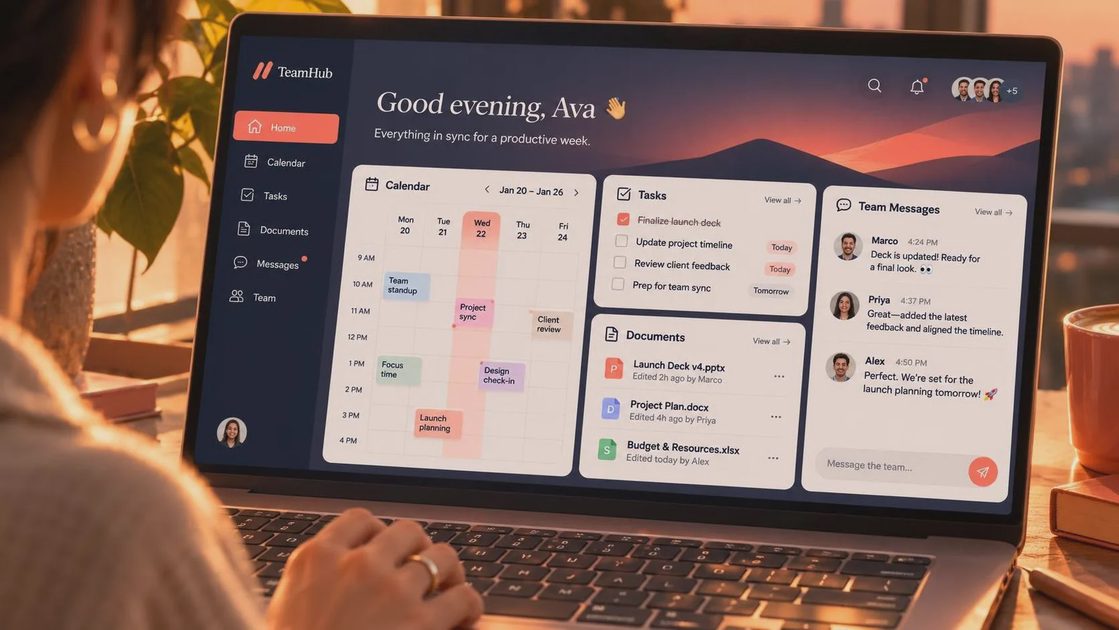
For family use, shared access needs an equally clear boundary. A shared calendar can hold school events and appointments without exposing every private note or work meeting. Agree on which calendar an event belongs to, and include the location or relevant link in the event itself. That small detail saves the frantic search when someone is already halfway out the door.
Check the unglamorous details before committing
Offline access matters more than a polished demo. Some services let you prepare files or enable offline access in advance, but availability varies by app, device, account, and settings. If you work on a train or in a spot with unreliable service, try opening and editing an important file without a connection before depending on the setup. Confirm that changes sync when you reconnect.
Also look at export and recovery. Can you download your documents or task data in a usable format? Is version history available on your plan? A sync service is useful, but it should not automatically be your only backup. Keep an independent copy of important records according to your workplace rules or personal needs.
Turn on multifactor authentication where available, and use a password manager rather than reusing a password across accounts. For work data, follow your organization’s policies on approved apps and AI features. An assistant that summarizes a document may be convenient, but check what information it can access and whether its use is permitted before turning it loose on sensitive material.
Finally, compare the total cost for the people who actually need access. Free plans can be enough for a personal list, while a shared workspace may require paid seats or place limits on features. Pricing and plan details change, so check the provider’s current terms before moving a whole team.
The point of cloud based productivity tools is not to build the most impressive workspace. Choose a home for shared files, one reliable task list, and a calendar people will actually check. Then leave the system alone long enough to notice where it helps and where it asks too much. Will this still work on Tuesday?



No comments yet — be the first to share a thought.