The best team productivity tools solve a specific coordination problem without asking everyone to tend another digital garden. For most small teams, I’d start with one shared task space, one reliable place for documents, and a clear agreement about when to use chat. You may already have two of those.
Asana is a good starting point for teams that need clear project ownership and deadlines. Trello suits a small group that wants a visual board without much setup. Microsoft Teams makes sense for organizations already working in Microsoft 365 and looking to bring conversations and collaboration together. None will fix a handoff if nobody knows who is responsible for it.
Start with the work that keeps getting stuck
Before comparing team productivity tools, pick one recurring irritation. Maybe requests vanish in chat, meeting decisions never reach the people doing the work, or three people update different copies of the same plan. Each problem points somewhere different.
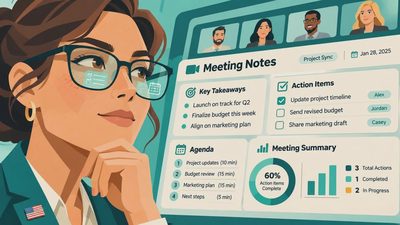
For missed handoffs, a task board should show the owner, next action, and due date when one matters. For repeated questions, a shared document with an obvious title may be enough. For meetings that produce no follow-through, a short decision and action log can do more than a new meeting app.
Ask the people doing the work what they already check during a normal day. A beautifully organized workspace has limited value if the team lives in email and nobody remembers to open it. I’d rather see a modest system used consistently than an elaborate one that becomes somebody’s unpaid side job.
Consider the actual handoff, too. If a designer needs an approval before a launch, the task should say who approves it and where the draft lives. “Launch prep” is a label; “Review the draft and approve the headline” is an action someone can take.

Which team productivity tools fit which jobs?
Asana is useful when work crosses teams and a manager needs to see responsibilities and deadlines in one place. It can support structured projects, but that structure takes decisions: agree on what deserves a task and who keeps it updated. A two-person team with a short weekly list may not need that much machinery.
Trello is a sensible option for a straightforward flow such as “to do,” “doing,” and “done.” Its card-and-board approach makes the state of work easy to scan. The tradeoff is that a board full of vague cards quickly becomes a colorful pile. Put a person and a next step on each active card, and archive work that is finished.
Microsoft Teams can be a practical hub for organizations already using Microsoft 365, especially when conversations and shared files are scattered. Decide which channel is for which purpose and where final documents belong. Otherwise, the same question can appear in a channel, a direct message, and an email before lunch.
Notion is worth considering when a team needs a shared home for project notes, reference material, and lightweight planning. Its flexibility is attractive, but it also makes it easy to spend an afternoon designing a workspace instead of documenting the process. Start with a short home page and a few useful pages, not an elaborate architecture.
Google Workspace is a good fit for teams that mainly need shared documents, spreadsheets, calendars, and email rather than a separate project-management system. A shared spreadsheet can track a small number of recurring handoffs perfectly well. Once dependencies and ownership become difficult to see, a dedicated task tool may earn its place.
Give each tool one clear job
The most useful team productivity tools have boundaries. Choose where a task lives, where discussion happens, and where the final decision gets recorded. Those places can connect, but they should not compete.
For example, a request might arrive in a chat channel. The person responsible creates a task with the request, owner, and next step. Discussion can continue in chat, but the final decision goes back into the task or linked document. Someone returning from a day off should not have to reconstruct the answer from 40 messages.
Write this agreement down in a few sentences and put it where new teammates can find it. Include what counts as urgent and how to flag it. A notification is not automatically an emergency, and a channel full of “urgent” messages is just another crowded inbox.

Check cost, access, and the AI fine print
Before adopting team productivity tools, check the price for everyone who needs access, not just the person setting them up. Free plans, guest access, storage, administration controls, and feature limits can change. Look at the vendor’s pricing and terms, and ask whether outside collaborators need paid seats.
Permissions deserve a real conversation. Decide who can see client information, personnel notes, and internal planning documents. When someone leaves the organization, there should be an owner responsible for removing access and transferring any important work. Also check how you can export your information if the team changes direction later.
AI features can be useful for turning approved meeting notes into a draft action list or finding a topic in a large document. They can also confidently miss a decision or assign an action to the wrong person. A human should check the output against the source before it becomes the official record.
Before enabling an AI assistant, review your organization’s policies and the vendor’s settings for data use, retention, and access. Don’t paste confidential client material or sensitive employee information into a tool just because a summary would be convenient.
Run a small trial before moving everything
Choose one real project and try your proposed setup for two to four weeks. Give the team a short starting template: task name, owner, next action, relevant link, and due date if there is a genuine deadline. Leave older work where it is unless moving it solves an actual problem.
At the end, ask three questions: Did people know what to do next? Were handoffs easier to find? How much time went into updating the system? Invite the people doing the updates to answer, not only the person who gets the dashboard.
If the board helped but nobody used the document hub, keep the board and simplify the rest. If the team kept returning to a shared spreadsheet, that is useful information, not a failed experiment. The point of team productivity tools is to make work clearer, not to prove the team can operate software.
Pick the smallest setup that handles the handoff, write down the agreement, and revisit it when the work changes. Then ask the question I care about most: Will this still work on Tuesday?



No comments yet — be the first to share a thought.