An ai native workspace puts AI alongside the documents, tasks, conversations, or other information you already use, so it can help you find context and do work without starting from a blank chat every time. That can be genuinely useful for a team drowning in scattered notes. It is not automatically better than a familiar document app and a separate chatbot, especially if moving everything would become a project of its own.
Think of Notion as an option for people who want AI close to their notes and project pages. Microsoft 365 Copilot may suit organizations already working in Microsoft's document and communication ecosystem. Google Workspace with Gemini is worth a look for teams centered on Google's apps. Features, permissions, and AI access depend on the plan and configuration, so check the details before treating any of them as a drop-in replacement.
What makes an ai native workspace different?
There is no universally enforced definition of the term. A vendor might use it to describe anything from an assistant embedded in documents to a system that can search across connected tools and take actions. The useful question is not whether a product earns the label. It is what the AI can actually see and do while you work.
A standalone chatbot usually needs you to provide context: paste in a meeting transcript, explain the project, and ask for a summary. An ai native workspace aims to bring some of that context closer to the assistant. Depending on the product and its settings, you might ask it to summarize a document, find a decision in shared notes, or turn a discussion into a draft task list.
That convenience comes with a trade-off. The more information an assistant can reach, the more carefully you need to manage access. A helpful answer drawn from the wrong document is still wrong; a helpful answer that exposes something a teammate should not see is a bigger problem.

Where the approach earns its keep
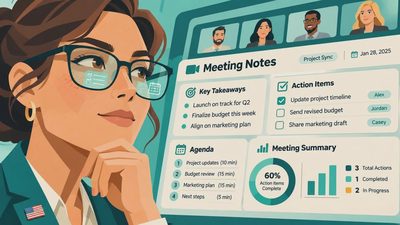
The strongest use case is a recurring task with a clear starting point and a result a person can check. For example, imagine a weekly project meeting whose notes live in one shared folder. You could ask the assistant to draft a recap with decisions, open questions, and proposed owners, then compare it with the notes before sending it.
The time saved is not just typing. It is the little hunt through a transcript for the one decision someone mentioned just before the call ended. But the review matters: an assistant may turn a suggestion into a decision or assign an owner who merely volunteered to investigate.
Another good fit is finding information across a set of documents. Ask a specific question such as, "What changed in the launch plan after the last review?" Then open the linked material, if the tool provides it, and check the dates. A polished answer is not proof that the underlying document is current.
An ai native workspace can also help turn a rough plan into a first draft. A freelancer could use project notes to outline a client update; a manager could draft an agenda from unresolved issues. In both cases, the person still decides what is accurate, appropriate, and ready to share.
I would be less enthusiastic about using it to create a whole new planning structure before there is a real problem to solve. If everyone has to tag every note perfectly before the assistant becomes useful, you may have traded one administrative chore for another.
Check access before you connect everything
Before putting an ai native workspace in front of a team, ask an administrator or vendor what sources the assistant can access and whether it respects existing user permissions. Check how connected sources are authorized, whether responses can include links to underlying material, and what happens when someone's access changes. Do not assume every integration handles those questions the same way.
Also review the product's data terms and your organization's settings. Find out whether prompts and files are retained, whether they may be used to improve models, and which controls apply to your plan. Avoid entering client information, employee details, or confidential financial material until your organization has approved that use. A personal subscription and a company-managed account may have different terms.
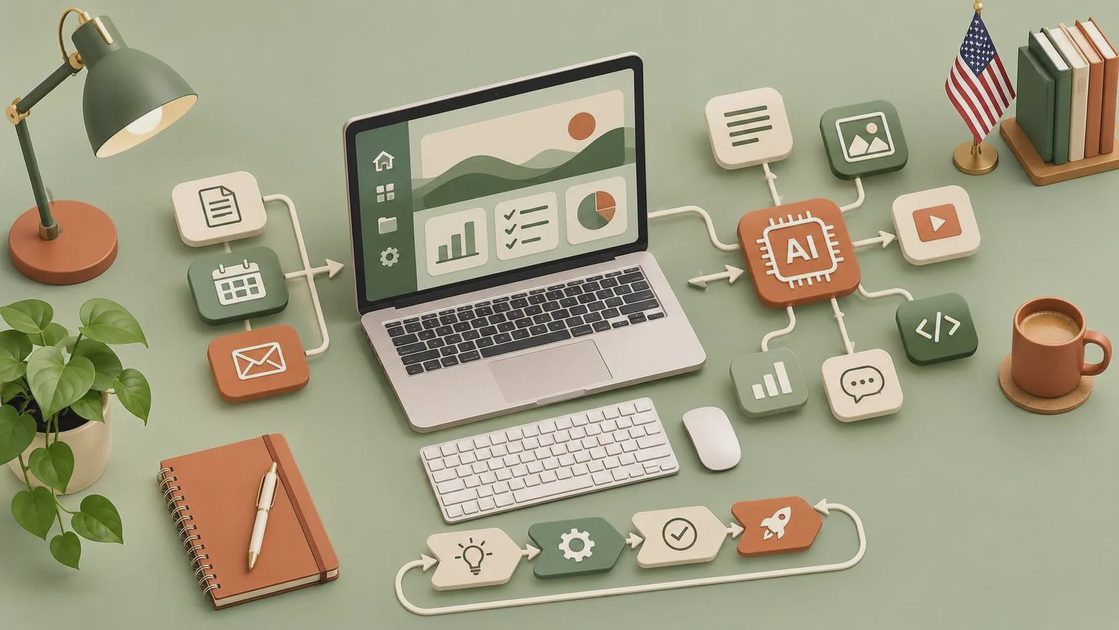
Pay particular attention to actions, not just answers. If a tool can send messages, edit files, or create tasks, find out whether it asks for confirmation and how to undo mistakes. Start with drafts and read-only access where available. A draft sent to you for review is much less disruptive than an incorrect update sent to a client.
For household planning, the same principle applies on a smaller scale. A shared grocery list is a low-stakes place to experiment. A child's school information, medical details, or a family's travel documents deserve more caution and a clear reason to be there at all.
A small trial beats a workspace overhaul
Choose one workflow that already annoys you, not an aspirational system you hope to maintain someday. Meeting follow-ups are a reasonable candidate because there is a visible input and an easy way to compare the draft with the original notes.
For two weeks, use the same basic request: "Summarize decisions, list proposed next steps, and flag anything that needs an owner. Do not guess when the notes are unclear." Review the result, correct it, and note how long the whole process takes, including finding the notes and fixing mistakes.
Then compare it with your ordinary method. Did the assistant reduce the work, or did you spend the saved minutes cleaning up confident guesses? Could a teammate find the final decisions later? Did the process still work when the meeting ran late and someone had to leave for school pickup?
You do not need a spreadsheet full of productivity scores. A short note about what saved time, what went wrong, and whether anyone actually used the output is enough to make a sensible decision.
When an ai native workspace is not worth it
Skip the switch if your main problem is that nobody knows who owns a task. AI can suggest an owner, but it cannot settle an organizational disagreement for you. Likewise, if the information you need is already easy to find and you rarely reuse it, a separate assistant for occasional drafting may be simpler and cheaper.
Look at the full cost, not just the advertised AI feature: subscriptions, setup, migration, permissions, and the attention required to teach people a new place to work. For a small team, that attention is a real resource.
My rule is to keep the existing system unless the new one removes a repeated point of friction without creating a bigger maintenance job. Start with one useful task, keep a human in charge of the result, and ask the question that matters after the demo is over: Will this still work on Tuesday?



No comments yet — be the first to share a thought.