The most useful thing about teams ai notes is not the summary itself. It is leaving a meeting with a short, checked list of decisions and next steps instead of a vague promise to “circle back.” In Microsoft Teams, AI-generated meeting recaps can help you do that, but access depends on your organization's licenses, meeting settings, and policies. You will also need to check the output: a fluent summary can still assign a task to the wrong person.
If your workplace already uses Teams, start with its built-in recap before adding another meeting bot. For people who work across several meeting platforms, Otter.ai is an alternative to investigate. Zoom AI Companion may be a better fit if your meetings mostly happen in Zoom. Each has its own access, privacy, and pricing rules, so the convenient choice is usually the one your organization already permits.
What teams ai notes can actually do
Depending on your setup, Teams can provide an AI-generated recap after an eligible meeting, with notes and follow-up tasks drawn from the meeting content. Teams also offers an AI note-taking experience called Facilitator in supported situations. These are related features, not necessarily interchangeable buttons: availability and the way you turn them on can differ.
The practical distinction matters. A post-meeting recap helps you revisit what happened. An in-meeting note-taking tool is intended to help capture and organize discussion as it happens. Neither should be treated as a perfect transcript or as a substitute for someone confirming the final decision.
A transcript is the text record of speech; AI notes are a condensed interpretation of it. A recording is different again. Your organization may allow one, several, or none of these. Meeting controls and labels can change, so use your organization's guidance if your screen looks different from someone else's tutorial.
How to get started in a Teams meeting
Before the meeting, ask your IT administrator whether the relevant AI recap or Facilitator features are enabled for your account and which license applies. Some capabilities require Teams Premium, Microsoft 365 Copilot, or another qualifying arrangement; do not assume that a basic Teams subscription includes every AI feature. Also ask whether transcription is permitted and whether it needs to be started for the experience you plan to use.
At the start of an eligible meeting, look in the meeting controls for the relevant transcription, recording, or AI note-taking option. Tell participants what you are enabling and why before you start. Teams may display its own notifications, but a plain-language heads-up lets people ask questions before a sensitive discussion is captured.
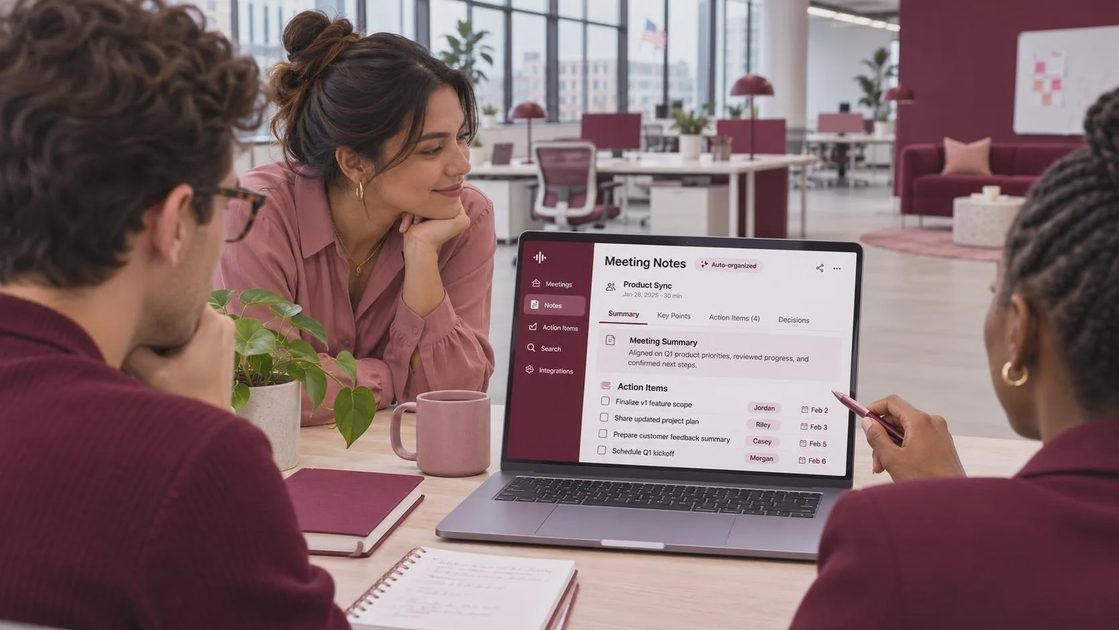
After the meeting, open it from your Teams calendar or chat and look for the Recap area. If AI-generated notes are available, read them alongside the transcript when you need context. Processing can take time, and not every meeting type or attendee will have the same access.
If you cannot find the feature, check the meeting organizer's settings, your license, transcription policy, and whether the meeting was eligible. An administrator may need to investigate. I would not spend half an afternoon chasing a missing button for a meeting that could be summarized in four sentences by a human.
Turn teams ai notes into a usable follow-up
The first draft is raw material, not the thing to forward untouched. Start with three questions: What was decided? Who agreed to do what? When does it need to happen? Then compare any consequential item with the transcript or ask the people involved.
For example, an AI summary might say, “Jordan will send the proposal Friday,” when the actual conversation was, “Jordan can review the proposal if it arrives by Friday.” Those are very different assignments. If you cannot verify the owner or deadline, mark it as unconfirmed instead of inventing one.
A helpful follow-up can be short: “Decision: use the revised timeline. Next step: Jordan to review the proposal after receiving it; delivery date still needs confirmation.” Add a link to the meeting recap only if the recipients have permission to see it. Put confirmed tasks in the place your team already uses, whether that is a project board or a shared document.
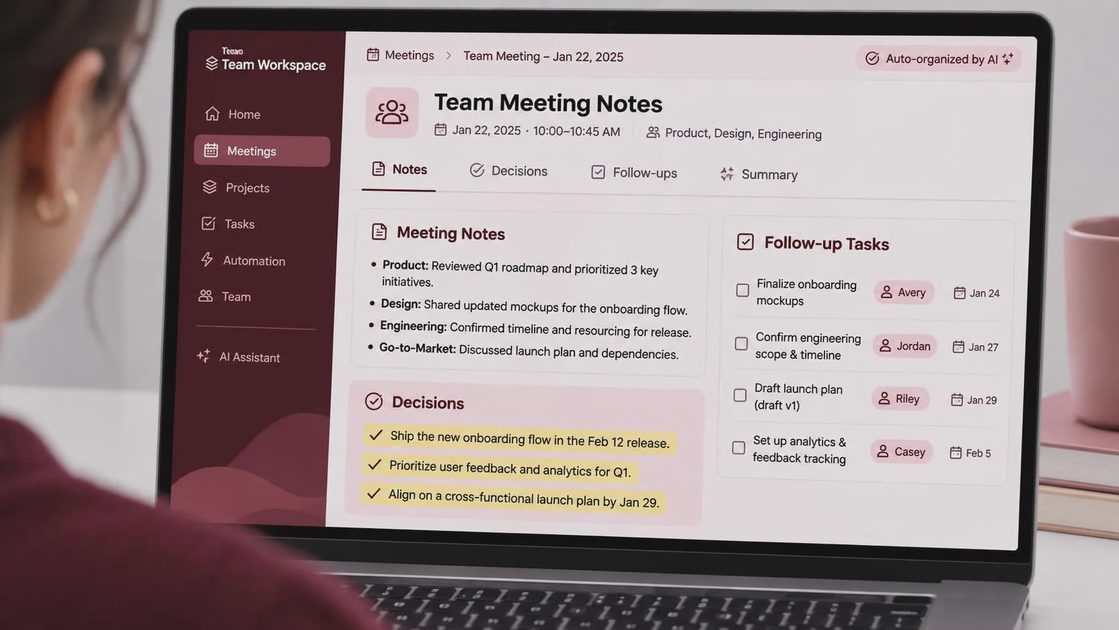
This is where teams ai notes can quietly create more work: a task appears in the recap, a second copy lands in a planner, and a third lives in someone's personal list. Pick one place as the source of truth. The recap can explain the conversation; the task system should show who is doing the work.
Privacy and sharing deserve a pause
Before using teams ai notes, consider whether the conversation should be captured at all. Personnel matters, legal discussions, customer information, health details, and other sensitive topics may be subject to company policy or legal requirements. Tell participants what is being recorded or transcribed, and follow applicable consent rules and organizational guidance. A meeting notification is not a substitute for checking those requirements.
Also distinguish access to the meeting from access to its artifacts. Recaps, recordings, transcripts, and shared notes may have different permissions and retention settings. An external guest who attended may not be able to open a recap, and someone who receives a copied summary may see information they were not meant to receive. Ask your administrator how your organization's settings work before assuming either way.
For a sensitive meeting, a brief human-written decision log may be the better option. You can document the outcome and agreed actions without preserving every tentative comment along the way.
When to skip the AI recap
For a recurring project meeting with several owners, teams ai notes can save a useful amount of cleanup. They are less compelling for a ten-minute check-in where the only outcome is “move the deadline to Thursday.” Write that down and get on with your day.
I would judge the workflow after a few ordinary meetings: Did the recap catch important decisions? How much correction did it need? Did anyone actually find the follow-up later? If the answers are mostly no, a shared agenda with a small decisions-and-actions section may serve your team better.
The goal is not a beautiful archive of everything everyone said. It is a dependable next step that survives interruptions, competing priorities, and the occasional forgotten browser tab. Will this still work on Tuesday?


No comments yet — be the first to share a thought.